
How to Choose the Best USB-C Hub for Your Laptop in 2026
A simple guide to understanding ports, compatibility, and making a smart purchase with models available at Simple Tech Nicaragua.
If you're looking for the best USB-C hub for your laptop, the goal isn't to buy the one with the most ports, but the one that actually meets your real needs. Today, many laptops come with few ports, which means you need to choose carefully if you want to connect a monitor, mouse, keyboard, USB flash drive, or charge your device at the same time. In this guide, you'll learn what to check before buying, what mistakes to avoid, and which type of hub is right for you based on how you use it. Everything is explained in simple terms with examples of real models available at Simple Tech Nicaragua, so you can make a clear and useful decision from the start.

USB-C hub for laptop: why choosing carefully really matters today
A USB-C hub might seem like a small accessory, but it often determines whether your laptop becomes more convenient or more limited. The change in modern laptops is clear: they are increasingly thin, portable, and sleek on the outside, but they also come with fewer ports. That's why the hub has gone from being an extra to becoming a normal part of the setup. The problem is that many people buy one without thinking about what they really need. Later, they discover that the monitor doesn't work, that the laptop charges very slowly, or that the device's USB-C port doesn't do what they thought. Choosing carefully isn't complicated, but it does require looking at three things: video type, charging, and compatibility. If you understand that, you're already well on your way and can avoid a purchase that won't work for you later.
The real problem isn't having few ports
The real problem is not knowing what type of ports you need for your routine. Some people just want to connect one screen and keep working. Others need two monitors to open more windows at the same time. Others use a keyboard, mouse, external drive, network cable, or charger at the same time. And there are also those who use a MacBook or very thin laptops and want a small, attractive, and portable solution. When you understand your real situation, buying becomes much easier. A simple hub can be perfect for one person and fall short for another. That's why this guide doesn't start with technical details first, but with real use: what you connect, how long you work while connected, and how much mobility you need in your day.
- If you only need one monitor and a few extra ports, a compact hub may be enough.
- If you want to charge your laptop while working, you should check the wattage of the USB-C port.
- If you're going to use two screens or many accessories at the same time, compatibility becomes more important.
Simple Tech recommendation: before looking at prices, write down what you're actually going to connect. When the purchase is based on real use, choosing the right hub is much easier and almost always turns out better.
What you should check before buying a USB-C hub for your laptop
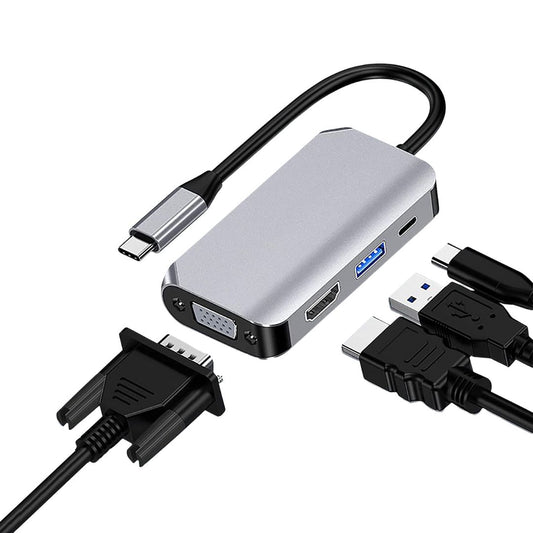
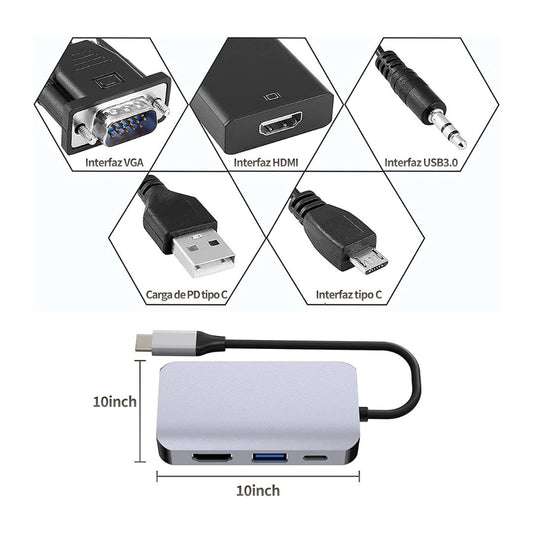
The right purchase starts with a very simple question: what do you want to connect today, and what might you need later? If you're only looking to output video to a monitor or TV, then the first important port is HDMI or DisplayPort. If you also want to use an older screen or an office projector, then a model with VGA can still be useful. A clear example is the 5-in-1 Type C Hub HDMI 4K, VGA, USB 3.0 and 60W Charging Port, which combines HDMI, VGA, USB 3.0, and USB-C charging in a single device.
If your priority is working with two screens, you shouldn't think the same way anymore: it makes more sense to look at something like the USB-C to Dual HDMI Hub, because it was created for that scenario and the specifications say it can work with one HDMI at 4K 60Hz or two screens at 4K 30Hz, as long as your device meets the compatibility requirement.
If, on the other hand, your focus is on having a more powerful video port and more charging headroom, there are options like the 3-in-1 USB-C Hub with 8K DisplayPort, 4.5W USB, and 100W USB-C, which is more direct and designed for those who highly value video and power.
Next comes the second part: the ports for daily work. This is where USB-A comes in, which is still very important because many keyboards, mice, flash drives, and wireless receivers still use that format. If this is your case, sometimes you don't need to pay for more video or a huge solution. An example is the Orico 4-in-1 USB-C Hub, which focuses on adding four USB-A 3.0 ports with speeds of up to 5Gbps.
On the other hand, if you want something very portable to go beyond the basics, the ORICO 5-in-1 Type-C Hub offers 4K HDMI at 30Hz, 60W PD charging, one USB-A 3.0, two USB-A 2.0, and one USB-C. That mix is easy to understand and useful for studying, the office, or mobility.
The third part is charging. This point matters more than it seems. If you spend many hours connected, it's worth checking if the hub allows enough power through to keep the laptop running while you work. There are models in the store with 60W and others with 100W. That difference changes the experience a lot. A 60W model can work well for light tasks or less demanding devices. A 100W one usually gives more headroom when you use the laptop with a monitor, several peripherals, and long work sessions. And if you also want a more complete desktop option, the Orico USB-C 5-in-1 Docking Station Hub steps up the level with 100W, 4K HDMI at 30Hz, VGA, USB-A 3.0, and a 3.5mm audio port.

Compatibility: the detail that ruins most purchases
This is the point that causes the most headaches. Many people see a USB-C port on their laptop and think that any hub will work the same. That's not always the case. In some cases, the USB-C port is for data, but not for video. In others, it does output video, but the hub's specifications require something more specific. For example, the USB-C to Dual HDMI Hub indicates that it requires Thunderbolt 3 at minimum. That completely changes the purchase decision. There are also products that work better when the device's USB-C is a full port, capable of handling video, data, and charging. If the specifications don't state a concrete piece of information, the right thing is not to assume it. The safest thing is to buy by comparing your need with what the description does say clearly.
Charging and video at the same time: when 60W is enough and when 100W is better
If your use is light, like studying, browsing, working with documents, or connecting a single screen, a 60W hub can solve it well. But if you spend hours with an external monitor, several connected accessories, and you want the laptop to keep charging without worry, then it's very much worth looking at 100W. It's not about buying “the most powerful” out of habit, but about buying with real headroom. For someone with a thin laptop and a simple routine, 60W can feel like enough. For someone with a more demanding device or a fixed work desk, 100W gives more security, more stability, and a more comfortable experience throughout the day.
Quick comparison of USB-C hubs available at Simple Tech Nicaragua
This comparison does not seek to say that one product is better than all the others. What it seeks is to help you see which option makes the most sense for each type of user. This way you avoid buying something very basic for a big need or something too complete for a simple need.
| Option / Feature | Advantage | Ideal for |
|---|---|---|
| 5-in-1 Type C Hub HDMI 4K, VGA, USB 3.0 and 60W Charging Port | Combines 4K/2K HDMI at 30Hz, 1080p VGA at 60Hz, USB 3.0 at 5Gbps, and 60W USB-C charging in a single device. Price seen in store: C$1,000.00. | Office, study, presentations, and users who want a balanced option. |
| USB-C to Dual HDMI Hub | Allows working with two 4K HDMIs, includes USB-C and USB-A 3.0, and the specifications say it can give 4K at 60Hz with one screen or 4K at 30Hz with two. Price seen in store: C$1,300.00. PD watts: not specified. | People who really need two external screens. |
| 3-in-1 USB-C Hub with 8K DisplayPort, 4.5W USB, and 100W USB-C | Offers 8K DisplayPort, a 4.5W USB port, and 100W USB-C charging. Price seen in store: C$1,000.00. | Users who prioritize video via DisplayPort and more charging headroom. |
| ORICO 5-in-1 Type-C Hub | Comes with 4K HDMI at 30Hz, 60W PD, one USB-A 3.0, two USB-A 2.0, and one USB-C in a thin and portable format. Price seen in store: C$900.00. | MacBook, thin laptops, mobility, and simple setups. |
| Orico USB-C 5-in-1 Docking Station Hub | Steps up to 100W, adds 4K HDMI at 30Hz, VGA, USB-A 3.0, and 3.5mm audio. Price seen in store: C$2,200.00. | Fixed desks, hybrid work, and users who want a more complete solution. |

Common mistakes when buying a USB-C hub for your laptop
The first mistake is buying on impulse and only looking at the number of ports. The second mistake is assuming that any USB-C works for video. And the third is not thinking about the power the laptop needs while the hub is working. It is also common to buy a hub thinking “just in case” and end up paying for features that are never used. The smartest way to avoid those mistakes is to compare your daily routine with what the specifications do confirm: video resolution, type of ports, charging watts, and compatibility requirements. If a piece of information does not appear on the web, the right thing is to treat it as unspecified and not invent it.
- Choosing without checking compatibility: before buying, check if your laptop outputs video via USB-C and if the model requires Thunderbolt 3 or a full USB-C.
- Forgetting charging: if you're going to work connected for many hours, check if the hub offers 60W, 100W, or if that information is not specified.
- Paying for ports you won't use: if you don't need two monitors, SD reader, or wired network, a simpler model can be a better purchase.

Which USB-C hub is right for you based on your use
There is no single perfect hub for everyone. The best purchase changes depending on how you work, what devices you connect, and how much time you spend at the desk. That's why, instead of thinking of “the best” as a single answer, it's worth thinking about “the best for my case”.
Use 1: Office
If you use your laptop for work, classes, video calls, and an external screen, the best purchase is usually a balanced option. This is where the 5-in-1 Type C Hub HDMI 4K, VGA, USB 3.0 and 60W Charging Port fits very well. It has a practical and easy-to-understand combination: modern video via HDMI, VGA output for older screens or projectors, a USB 3.0 for peripherals, and USB-C charging. It's a simple solution for those who don't want to complicate things.
Use 2: Gaming
In gaming, it's worth thinking about stability and the type of screen you use. If your idea is to make better use of an external screen and have more power headroom, models with stronger video or with 100W usually feel more comfortable. If you also use two screens, the USB-C to Dual HDMI Hub makes more sense, as long as your laptop meets the requirement indicated in the specifications. If you need a wired network and more ports at the same time, then a more complete docking station like the ORICO Type C 8-in-1 Docking Station can fit better than a very basic hub.
Use 3: Content Creators
For creators, the key point is usually video and stability. If you connect a monitor or projector frequently, a model with clear video output and good charging helps a lot. The 3-in-1 USB-C Hub with 8K DisplayPort and 100W can be a strong option if you care a lot about DisplayPort output. If you also need a more versatile desktop solution, with VGA, audio, and better comfort in a fixed space, the Orico USB-C 5-in-1 Docking Station Hub can make more sense.
Use 4: MacBook or USB-C laptops
If you use a MacBook or a very thin laptop, portability matters a lot. In that scenario, a thin and easy-to-store option usually gives a better experience. The ORICO 5-in-1 Type-C Hub is easy to understand because it combines 4K HDMI at 30Hz, 60W PD charging, USB-A 3.0, two USB-A 2.0, and one USB-C in a compact format. If you want it for daily mobility, meetings, or cafe-work, it's a practical purchase. If you also want more power or more fixed connectivity, then it's already worth upgrading to a 100W option.
The best purchase isn't the hub with the most ports: it's the one that actually matches your real way of working.
Related guides and categories to complete your setup
This article works as a main guide for choosing USB-C hubs, but it also connects with other categories that normally form part of the same setup: video cables, adapters, docking stations, and productivity accessories. If you're setting up a more comfortable workspace, these links can help you keep comparing without starting from scratch.
- View Hubs, OTGs, and Adapters: ideal if you want to compare more connectivity options for laptop, MacBook, or desktop.
- View Video Cables: useful if in addition to the hub you need to connect monitors, projectors, or external screens.
- View ORICO Type C 8-in-1 Docking Station: a more complete alternative if you are looking for more ports for a fixed desk.
- View USB-C to Dual HDMI Hub: recommended when the main goal is to work with two external screens.
Simple Tech recommendation: if you use an external monitor and several accessories at the same time, look for a hub with Power Delivery to keep your laptop charged while you work.

Frequently Asked Questions
Does a USB-C hub work with any laptop?
Not always. A USB-C port can be used for data, charging, or video, but not all of them support all three at the same time. Before buying, check if your laptop supports video output through USB-C and if it accepts charging through that same port. On some Simple Tech Nicaragua product pages, Thunderbolt 3 is even listed as a minimum requirement.
What should I check first before buying a USB-C hub for my laptop?
First, think about what you really need to connect. If you want to connect a monitor, check for HDMI or DisplayPort. If you also plan to charge your laptop, check the wattage of the USB-C PD port. And if you use a mouse, keyboard, USB flash drive, or wireless receivers, check how many USB-A ports it has. Buying based on your actual needs almost always yields better results.
What does Power Delivery or PD mean on a USB-C hub?
Power Delivery is the feature that allows power to pass through the USB-C port to charge your laptop or device while the hub is in use. The store offers options with 60W and 100W. If you use your laptop for many hours while connected or with an external monitor, a model with more headroom usually feels more comfortable.
What is the difference between a USB-C hub and a docking station?
A hub is usually smaller, lighter, and easier to carry. A docking station is usually more comprehensive and has more ports, so it works better on a fixed desk. If you only need to add a monitor and a few ports, a hub may be enough. If you also want a wired network connection or an SD card reader, a docking station may be better.
Can I use two monitors with a single hub?
Yes, but it depends on the model and your laptop. At Simple Tech Nicaragua, there is a USB-C to Dual HDMI Hub designed for this use, but the product page indicates that it requires at least Thunderbolt 3. There are also hubs that support video output, but they were not designed to work with two extended screens in the same way.
Which hub is best for a MacBook or thin laptop?
If you are looking for something lightweight and easy to carry, a 5-in-1 option with HDMI, USB-A, and PD charging is usually very practical. If you also need more power or a more robust video port, then it makes sense to upgrade to a 100W model or one with DisplayPort. The right decision depends more on your usage than on the name of the device.
Conclusion
Choosing a USB-C hub for your laptop shouldn't feel complicated. If you check the video type, charging, and compatibility, you already have almost the entire decision figured out. After that, you just have to choose whether you want something simple for the office, something portable for a MacBook, a dual-monitor option, or a more comprehensive desktop solution.
At Simple Tech Nicaragua, you can find original and compatible accessories to improve your setup without the hassle.
Productos recomendados
Opciones seleccionadas por Simple Tech para complementar esta guía y ayudarte a elegir mejor.


Mejora tu setup sin complicaciones
En Simple Tech Nicaragua puedes encontrar accesorios originales y compatibles para trabajar, estudiar, crear contenido o conectar mejor tus dispositivos.



Deja tu comentario
¿Tienes una duda, experiencia o recomendación? Compártela aquí.